The master design got approved Thursday afternoon. Now you need eight IAB sizes, two platforms, a ClickTag on every one, and everything in the ad server by Friday. Programmatic rewrote the job. In the US, roughly 9 in 10 display ad dollars flow through programmatic, according to eMarketer (2024). US programmatic ad spend is forecast to surpass $200 billion in 2026. The work moved from finishing one beautiful banner to building systems: multi-size sets, platform-specific packages, and delivery mechanisms that expect your creative to render on thousands of publisher sites before lunch. Programmatic HTML5 production means producing compliant, multi-size banner sets across multiple platforms, each with its own spec sheet, all on a deadline that assumes you already know how. This guide walks through the production workflow in Bannersnack: the design principles, programmatic demands, the five steps from master design to delivered tag, the platform specs that decide your export route, and the serving choice that determines whether you spend your quarter re-exporting ZIPs.
Key takeaways
Bannersnack's production workflow runs five steps inside a single editor: design the master at 300x250, animate on a timeline within the 30-second Google Ads cap, adapt to the full IAB set with Smart Resize, configure ClickTag across the entire ad surface, and export the complete set as HTML5 ZIP bundles or hosted AdTag.
Most programmatic campaigns require five IAB formats minimum to cover desktop and mobile inventory: 300x250 (widest reach and the standard starting point), 728x90 (desktop leaderboard), 160x600 (wide skyscraper), 320x50 (non-negotiable for mobile), and 300x600 (recommended for premium placements).
Google Ads enforces a 150KB hard file size ceiling with no external script calls; DV360 supports polite loading up to 5MB total; campaigns spanning both platforms typically need two distinct export packages.
Smart Resize generates a full IAB set from one master design, adapting layout, font scaling, and animation timing to 50+ formats in one step, though text truncation at small sizes and image cropping at extreme aspect ratios need manual review per size.
HTML5 ZIP is the universal export format but requires per-platform compliance and re-uploading for every creative change; AdTag hosts the creative on Bannersnack's servers, serves 26+ ad networks from a single tag, updates live placements in real time, and provides per-network analytics including click heatmaps and device data.
What programmatic means for your creative files
Programmatic chains real-time auctions, DSPs, SSPs, and ad exchanges into a single buying machine. For the creative, none of that matters directly. What matters is what comes out the other end: dozens of placements, each with its own spec sheet, all expecting compliant files within milliseconds.
Three things change at the file level compared to direct-buy. You are producing multiple sizes at once, and five IAB formats counts as a small campaign. Specs are stricter: file size limits are enforced, animation is time-capped, external calls are often blocked.
You are usually exporting to more than one platform, each reading the files differently. One campaign translates to ten-plus distinct file packages.
What do programmatic platforms actually receive?
Every HTML5 banner ships as a ZIP file: an index.html entry point plus an assets folder with CSS, JavaScript, images, and embedded fonts. Every major platform also requires a static fallback image in JPG or PNG, mandatory backup for environments where HTML5 cannot render.
In Bannersnack the fallback can be a composite of every canvas element, or a specific frame you pick from the timeline, whichever best represents the creative as a still. Folder structure expectations differ between platforms: flat hierarchies versus organized subfolders, and a mismatch is a common rejection reason before the creative renders at all.
Design principles for programmatic HTML5 banners
Programmatic banners operate under constraints direct-buy display does not share. The viewing window is shorter, the rendering environments are messier, and performance gets judged at millisecond latency on sites you will never audit.
Rich media HTML5 ads average a 0.44% CTR compared to 0.12% for static formats, according to eMarketer. That performance gap only holds when the design accounts for how programmatic actually works.
a.) Designing for a 1–2 second viewing window
The lead frame of your animation carries the message, or nothing does. Readers scroll past programmatic placements in a second or two, and whatever lands on screen first is often the only thing they actually see. Hierarchy decisions (what reads first, what reads second) are really decisions about what gets seen at all.
The four-line text limit that shows up in every banner guide is not a style preference. Programmatic inventory includes low-DPI placements on thousands of publisher sites, and dense copy at 300×250 or 320×50 becomes unreadable once rendering quality drops. High contrast earns its place for the same reason: you cannot predict what background the placement sits on.
b.) Animation that works within programmatic limits
Google Ads caps total animation at 30 seconds. The IAB Tech Lab recommends 15 seconds across three loops. Both limits exist because longer animation means more keyframes, heavier JavaScript payload, and a ZIP file that blows past the size budget. Animation quality and file size pull in opposite directions.
The practical rule: animate what carries the message (the product, the headline, the CTA reveal), and keep backgrounds and decorative elements static. One strong transition per frame beats continuous motion that bloats the package and triggers upload rejection.
c.) Brand consistency across format sizes
A 728×90 leaderboard is not a compressed 300×250. Each format has its own composition logic, and a proportional resize almost never works. Copy hierarchy, image cropping, and button sizing all need to be rethought for the new canvas.
What stays constant across formats:
brand color
typeface
CTA label
logo placement
What adapts:
layout
copy length
image cropping
button sizing
You design the master with adaptability in mind from the start, and elements that will be removed or repositioned at smaller sizes should be planned on the way in rather than improvised during production.
From one design to a full IAB set: the production workflow
Once the master design is approved, everything that follows is production: animate, adapt, configure, export.
In Bannersnack it runs as a five-step sequence inside a single editor:
design the master
animate it
adapt to the IAB set with Smart Resize
configure ClickTag
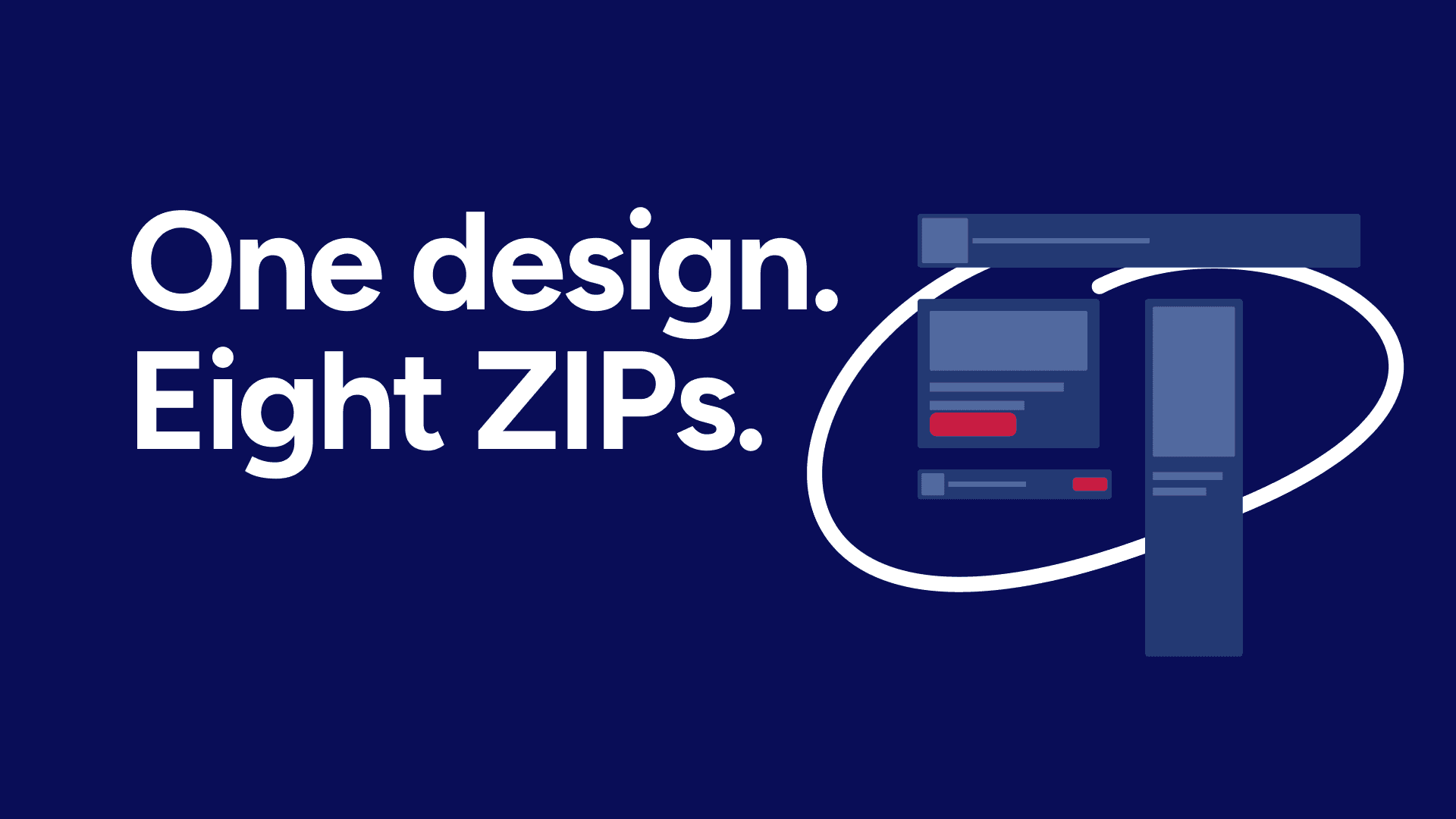
export the full set through Design Sets as ZIP bundles or hosted AdTag
Step 1: Design the master
Start with 300×250. It has the widest inventory reach in programmatic and the most flexible proportions for adapting to wider and taller formats later.
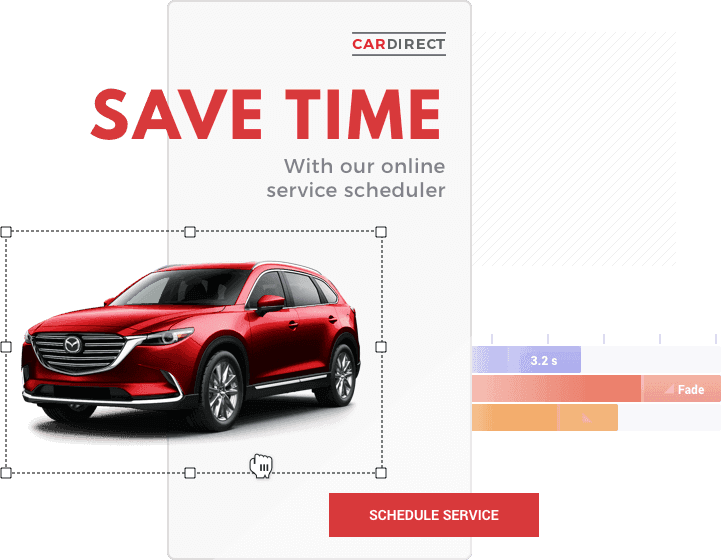
Set up layers for adaptability from the start. Logo, CTA button, headline, background, and animated elements should each be independently movable, not locked into a grouped composition.
Lock what has to stay constant (logo position, brand color, typeface) and leave everything else flexible. The master design is the template every other format inherits from.
Step 2: Add animation
Animation in Bannersnack runs on a timeline with three building blocks:
entry and exit transitions
middle animations (shake, blink, pulsate, slide effects while elements are visible)
slide transitions between frames.
Build inside the 30-second Google Ads cap and the IAB Tech Lab's three-loop recommendation from the start; retroactive cuts usually force a full timeline rework.
If you would rather skip manual setup, Magic Animator applies a one-click animation across every element in the design and you tweak from there. Magic Animator replaces the need to write GSAP or CSS animation code manually. Either route works for programmatic.
Animate this size once. When Smart Resize runs in the next step, your animations carry across to every other size automatically, no per-format rebuild.
Step 3: Adapt to the full IAB set with Smart Resize
Smart Resize generates the rest of the set from the master design, adapting to 50+ IAB and social formats in one step. Layout, font scaling, positioning, and animation timing propagate across the new sizes.
Smart Resize handles roughly 60% of adaptations correctly on the first pass. Proportional layouts come out clean; edge cases like text truncation at small sizes or image cropping at extreme aspect ratios need a designer review.
Walk through each size, check hierarchy and readability, fix what the automation could not. Where the inherited animation timing feels off because proportions changed, Focus Mode lets you tune pacing on individual sizes without touching the rest.
Step 4: Configure the ClickTag
ClickTag turns the entire banner into a clickable surface the serving platform assigns a URL to at delivery. That is what enables click tracking and destination swapping per network. It has to cover the whole ad area, not just the CTA button: button-only ClickTags are one of the most common upload rejection causes across every platform.
Different platforms expect different ClickTag syntax. Google Ads declares it one way, DV360 uses a multi-exit ClickTag format, and third-party DSPs have their own conventions.
Platform | ClickTag format | Notes |
Google Ads | Specific single-exit syntax | Auto-generated in Bannersnack export |
DV360 | Multi-exit ClickTag format | Supports multiple exit URLs per creative |
DSPs (TTD, Adform, AppNexus) | Varies per platform | Check DSP documentation for syntax |
Bannersnack AdTag | Configured in editor | No manual ClickTag coding required |
In Bannersnack, none of it touches your file. Open the Download panel, choose HTML5 export, and scroll to URL Settings. Paste your landing page URL, choose the link target (_blank for a new tab or _self for the same window), and check "Use as clickTag." The platform-specific syntax gets written into the export automatically.
Step 5: Export the complete set
This is where the platform decision lands. Google Ads and DV360 need HTML5 ZIP uploads; multi-network campaigns go through AdTag. Design Sets lets you export every size at once, or just the specific sizes you need if the campaign only calls for a subset.
Pick the format per platform: HTML5 ZIP for Google Ads and DV360, or AdTag when the campaign needs hosted serving (covered next). File and folder naming should match each platform's expected convention; a mismatch stalls processing before the creative renders.
IAB standard banner sizes for programmatic campaigns
The IAB Tech Lab's standard size set is short and consistent. Most programmatic campaigns ship five formats minimum to cover desktop and mobile inventory without leaving placement gaps. The sizes below are the ones that show up in nearly every programmatic brief, and skipping any of the essential formats usually means missing inventory.
Size | Name | Common placement | Priority |
300×250 | Medium Rectangle | Above-fold, inline content | Essential |
728×90 | Leaderboard | Top-of-page, desktop | Essential |
160×600 | Wide Skyscraper | Right sidebar, desktop | Essential |
320×50 | Mobile Leaderboard | Mobile web, in-app | Essential |
300×600 | Half Page | Sidebar, premium | Recommended |
970×250 | Billboard | Premium, top-of-page | Optional |
Prioritize 300×250: widest inventory reach and the workhorse format across most programmatic placements.
320×50 is non-negotiable for mobile.
728×90 is the desktop leaderboard standard.
970×250 shows up on high-impact, premium placements and is not universally supported.
Platform technical requirements: Google Ads, DV360, and DSPs
One HTML5 package rarely clears every platform without adjustment. Google Ads, DV360, and third-party DSPs define file size limits, ClickTag syntax, and external call rules differently enough that campaigns running across both Google Ads and DV360 typically need two distinct exports.
Requirement | Google Ads | DV360 | DSPs (TTD, Adform, AppNexus) | Bannersnack AdTag |
Max file size | 150KB | 200–300KB initial (5MB polite) | 150–500KB | No limit |
ClickTag | Mandatory, specific | Mandatory, multi-exit | Varies per DSP | Configured in editor |
Animation | 30s max | 30s recommended | 15–30s | Platform-matched |
External calls | Not allowed | Limited | Sometimes allowed | Hosted, not blocked |
Polite loading | Not supported | Up to 5MB total | Often supported | N/A |
Google Ads is the strictest: 150KB hard ceiling on the full ZIP, no external script calls, and a specific ClickTag format.
DV360 relaxes the file size ceiling with polite loading (additional assets that load after the initial 150KB) up to 5MB total.
DSPs sit in between, with most allowances whitelisted per advertiser.
The AdTag column is covered in the next section; it bypasses most of these ceilings by hosting the creative externally.
Exporting for programmatic: HTML5 ZIP vs. AdTag
At the end of the workflow, you are choosing between two delivery formats: the HTML5 ZIP and AdTag. The choice is less about preference and more about what the campaign is asking of you.
Feature | HTML5 ZIP | AdTag |
File hosting | Uploaded to each platform | Hosted on Bannersnack servers |
File size limit | Platform-dependent (150KB Google Ads) | No limit |
Creative updates | Re-export and re-upload per change | Real-time, no re-upload needed |
Platform reach | Universal, but separate exports per platform | 26+ networks via single tag |
Analytics | Platform analytics only | Built-in per-network analytics (CTR, heatmaps, device data) |
Video support | Limited by file size ceiling | In-banner video including transparent video |
Availability | Included in plan | Paid add-on (Plus and Team plans) |
HTML5 ZIP option
The HTML5 ZIP is the universal format. It packages index.html, CSS, JavaScript, images, fonts, and the fallback image in the folder structure every DSP and ad server knows how to parse. You upload the ZIP, the platform trafficks it, the creative runs.
The tradeoff is compliance overhead. Each platform enforces its own file size ceiling and ClickTag format, so campaigns on both Google Ads and DV360 usually need two separate exports. Every creative change means re-exporting and re-uploading.
AdTag option
Bannersnack AdTag is a hosted serving solution: the banner creative lives on Bannersnack's servers and the ad network receives a lightweight script tag pointing to it. A single AdTag integration reaches 26+ named ad networks (including Google Ads, DV360, The Trade Desk, Adform, Sizmek, AppNexus, and Yandex), bypasses platform file size limits entirely, updates every live placement in real time when you edit the design, and feeds per-network analytics (impressions, CTR, click heatmaps, device and location data) back into the editor.
Because file size stops being a constraint, you can animate longer, preserve image quality, and include video in the ad without it getting rejected (transparent video included). AdTag is a paid add-on available on Plus and Team plans.
Choosing between them
If your campaign runs on Google Ads alone with creative inside 150KB, HTML5 ZIP is fine and AdTag overhead is not needed.
If you are running across multiple networks, fighting file size, or the campaign will need mid-flight updates, AdTag carries the decision.
Pre-delivery compliance checklist
Before uploading, walk the creative against the checklist below. Catching these here saves a round trip through the platform rejection queue.
Check | Requirement |
File size | Under platform ceiling (150KB Google Ads; 200–300KB initial for DV360) |
ClickTag | Applied to full ad area, correct platform format |
Animation | 30 seconds or less total, 3 loops maximum |
Fallback image | Included, JPG or PNG, matches intended static frame |
External calls | Removed or whitelisted per platform |
Fonts | Embedded or SVG-converted for Google Ads compatibility |
Folder structure | Matches target platform's expected layout |
File naming | Matches platform upload convention |
Most uploads that fail on the first pass fail on ClickTag placement, file size, or fallback image. The rest covers the edge cases that surface once the obvious ones are handled.
A brief note on DCO for designers
Dynamic Creative Optimization (DCO) is the layer above standard HTML5 sets. Instead of a fixed creative per size, DCO uses templates with variable elements (headline, product image, CTA) populated from a data feed at delivery time. The output is parameterized rather than static.
DCO earns its overhead at the scale of audience segmentation, market or language variants, or real-time personalization. For a standard campaign with one creative concept across five to eight sizes, standard HTML5 sets are the right tool and DCO is unnecessary complexity.
Bannersnack covers the design and export layer. DCO typically requires a separate data feed and a DCO-enabled ad server beyond the creative tool.
Conclusion
The gap between a finished master design and a delivered programmatic campaign is pure production:
format adaptation
platform compliance
ClickTag configuration
export routing
Those tasks are mechanical, but they eat creative hours when the tooling does not handle them. Bannersnack keeps every production decision inside one editor, under the designer's human-controlled design choices, from the first frame to the final served tag.
The production layer stops eating into the time you would rather spend designing.
P.S. And with that, a short dive into the less glamorous side of programmatic advertising comes to an end.