Creating HTML5 banner ads no longer requires coding, but it still requires getting the details right. File size limits, clickTags, backup images, and platform compliance are what decide whether your ad goes live or gets rejected.
Key takeaways
Rich media HTML5 ads deliver a click-through rate of approximately 0.44% versus 0.12% for standard static display (eMarketer), and engagement rates show a wider gap at 16.85% versus 2.14% (MediaGroupWW).
The exported HTML5 ad is a ZIP package containing HTML, CSS, JavaScript, and a static fallback image that matches the ad’s exact pixel dimensions. The ad platform does not auto-generate this fallback, so it must be confirmed inside the ZIP before upload.
Google Ads caps HTML5 ZIP file size at 150 KB total with no secondary loading and limits animation to 30 seconds on a held static final frame. DV360 supports polite loading up to 5 MB total. The same ZIP submitted to both platforms will fail one of them.
A clickTag is the variable an ad platform uses for click tracking. Google Ads and DV360 use different clickTag implementations, and submitting a file formatted for one platform to the other causes a silent validator failure.
Five IAB standard sizes cover most display campaign reach: 300×250 (medium rectangle), 728×90 (leaderboard), 160×600 (wide skyscraper), 300×600 (half page), and 320×50 (mobile banner).
Producing HTML5 banner ads without a developer used to mean one of two things: learning enough code to assemble the file by hand, or working inside a tool not built for how designers actually work. The output tended to share the same problems regardless, whether that was exceeding the file size limit, missing a click URL, or getting rejected by the ad platform for a reason buried three support articles deep.
Visual editors changed the production model. Designers now produce platform-ready HTML5 display ads from inside a drag-and-drop environment, with no HTML, CSS, or JavaScript to write or debug. The tool generates the compliant file structure on export. The designer controls the layout, animation, and brand assets.
The guide below covers the complete production workflow: from blank canvas to live creative across any ad platform, including the compliance requirements that account for most rejections. File size limits, clickTag formatting, backup images, and animation duration caps account for most upload failures, so they get more space here than in most guides.
How HTML5 display ads actually work
HTML5 has been the standard delivery format for animated display advertising since Flash was deprecated by major browsers at the end of 2020. Any campaign running animated creatives across Google Ads, DV360, programmatic DSPs, or independent ad networks is running HTML5 files, whether produced by hand or generated by a banner tool.
Understanding the file format is useful before building anything. The exported asset is a ZIP package containing the HTML, CSS, and JavaScript that construct and animate the ad, plus a static fallback image for environments where HTML5 cannot load. That ZIP is what gets uploaded to the ad platform. Knowing what belongs inside it, and what each platform checks on upload, is where practical technical knowledge sits.
The distinction between custom HTML5 and responsive display ads is worth drawing clearly. Google Ads offers responsive display ads, where the platform assembles creatives automatically from uploaded images, headlines, and logos. That route is faster to produce but surrenders layout control.
Typography, composition, and animation behaviour are partly platform-decided. Custom HTML5 banners render exactly as designed in every placement because every frame stays under the designer’s control.
The IAB standard sizes below cover the majority of display auction inventory. Most campaigns start with the five core formats, then expand based on placement data.
Size | Name | Common placement |
|---|---|---|
300×250 | Medium rectangle | In-feed, sidebar, mobile |
728×90 | Leaderboard | Top of page, desktop |
160×600 | Wide skyscraper | Sidebar, desktop |
300×600 | Half page | Sidebar, premium placements |
320×50 | Mobile banner | Top/bottom, mobile |
970×250 | Billboard | Top of page, desktop |
300×50 | Mobile banner | Top/bottom, mobile — compact fallback |
HTML5 vs GIF vs Responsive Display Ads: What to Use When
Three formats account for almost all display ad production. Each involves a different trade-off between design control, production time, and platform compatibility:
Format | Design control | Animation | File size | Production time | Best for |
|---|---|---|---|---|---|
Custom HTML5 | Full | Full timeline control | Up to 150 KB (Google Ads) or 5 MB via DV360 polite loading | Higher | Brand campaigns, controlled creative testing, platform-specific compliance |
GIF | Full at creation | Basic (frame-by-frame) | Often larger than HTML5 at equivalent quality | Medium | Simple animations, environments where HTML5 is blocked |
Responsive display | Partial | Platform-controlled | No limit — platform hosts assets | Lowest | Fast deployment, broad reach, testing headlines and images at scale |
Rich media HTML5 ads deliver a click-through rate of approximately 0.44% versus 0.12% for standard static display, according to eMarketer data. Engagement rates show a wider gap: dynamic ads at 16.85% compared to 2.14% for static (MediaGroupWW). That advantage holds when animation works toward the message, when entrance effects frame the offer and motion draws the eye to the CTA. It disappears when the animation delays the offer, putting the call to action behind a 15-second brand build the viewer has already scrolled past.
GIF remains a workable fallback for HTML-blocked ad environments, such as certain email environments and older ad networks. For anything running through Google Ads, DV360, or programmatic DSPs, HTML5 is both supported and the better format on every performance dimension except production simplicity.
Where most HTML5 production workflows break down
Google Web Designer is usually the first tool designers try. It’s free, built by Google, and appears prominently in any search for HTML5 ad creation. The interface sits closer to a code editor than a design environment, and designers who work primarily in layout tools tend to find the workflow disorienting. Exports also require more post-processing than most production pipelines allow for.
Three creation paths are available, each with a different trade-off:
Hand-coding (HTML/CSS/JS, GSAP): Maximum control over every element and animation. Steep learning curve. Not practical for campaign-volume production unless the team has dedicated front-end resource. Best suited to one-off custom builds.
Visual editor tools (including dedicated banner production platforms like Bannersnack): Drag-and-drop environment with timeline animation, template libraries, and multi-size output. The tool generates the compliant HTML5 on export. Best for designers producing recurring campaign sets.
Figma plugin approaches: Work within an existing Figma workflow. Animation capabilities are more limited than dedicated banner tools, and export compliance (clickTag, file size, backup image) typically requires manual handling.
For designers producing display campaigns at volume, visual editor tools close the gap between creative control and production speed without requiring code knowledge.
How to create HTML5 banner ads without coding: The full workflow
The workflow below uses Bannersnack, a browser-based banner production tool built for display advertising. Five steps from first canvas to uploaded creative:
Step 1: Choose a Template or Start from Scratch
Bannersnack has a dedicated display ad template library with over 4,000 designs across all major IAB standard sizes:
300×250 medium rectangle
728×90 leaderboard
160×600 wide skyscraper
300×600 half page
320×50 mobile banner
Templates include pre-built animation, which makes them useful when the campaign schedule is tight. Alternatively, start from a blank canvas at a custom or preset size. If the campaign needs multiple formats, begin with the master size. Multi-size generation from that master is covered in the next section.
Step 2: Build Your Design with Your Brand Assets
Logos, custom fonts, and images import directly into the Bannersnack library. The layer-based editor works on familiar design principles: elements sit on a canvas, z-order is managed through the layers panel, and precise positioning uses the inspector.
Text, shapes, buttons, images, and video are all available as elements. Custom fonts upload at up to 20 MB per file. Assets saved to the library are available across all designs in the workspace, so brand application stays consistent across every size and campaign variation.
Step 3: Add Animation Using the Timeline
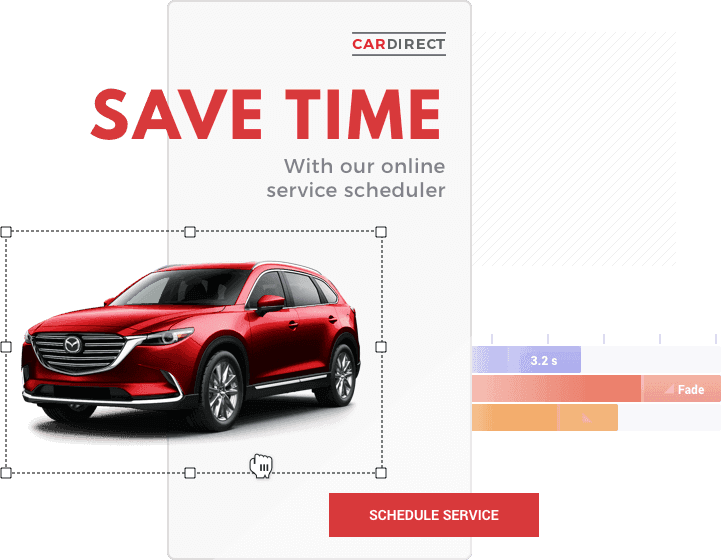
Animation runs through a timeline at the bottom of the editor. Each layer gets its own build-in and build-out effect, with timing set by dragging handles. The approach mirrors keyframe-based workflows: every element’s animation properties (opacity, position, scale, rotation) can be set independently across the timeline, with entry and exit points determined by where the handles sit.
Easing controls how animation accelerates and decelerates. A button that enters with a linear fade reads differently from one that bounces in or drops with a deceleration curve. The difference between a deceleration curve and a linear fade matters at the level of attention. Animation that decelerates toward a held frame draws the eye to a point and holds it; linear motion passes through.
Bannersnack’s preset library covers 14 types: Alpha (fade), Bounce, Cross, Drop, Expand, Flip, Grow, Hit, Intersect, Joy, Keynote, Slit, Step, and Wipe.
Loop count has a direct compliance implication. Google Ads caps total animation at 30 seconds, and the ad must end on a held static frame. The math requires care: a 10-second animation at three loops runs 30 seconds and stays within the limit. Four loops at the same duration hits 40 seconds and fails validation.
The Loop Counter in Bannersnack sets the number of animation cycles. The Stop Slide option on the final frame ensures the animation ends on a held state rather than looping back to the start.
For campaigns requiring animation applied quickly across multiple sizes, the one-click Magic Animator feature applies a preset sequence to all sizes in a Design Set.. It’s useful when the priority is format volume rather than per-size animation customisation.
Step 4: Export to Your Ad Platform
Bannersnack offers two export routes depending on where the campaign runs:
For direct uploads to Google Ads or DV360, use the HTML5 ZIP export. Select the target platform in the export panel and Bannersnack applies the correct technical specifications automatically. Before downloading, enable ClickTag by entering the click-through URL in the export settings. ClickTag is the variable the ad platform uses for click tracking, and the compliance section below covers exactly how it works and what goes wrong when it’s misconfigured. If the design uses custom OTF or TTF fonts, enable Convert custom fonts to SVG, as Google Ads does not accept those font formats natively. The quality slider controls image compression and therefore file size: start at 100% and reduce only if the export exceeds the platform’s limit.
For campaigns running across broader ad networks, DSPs, or programmatic platforms, AdTag is the stronger route. Available on Plus and Team plans as an optional add-on, AdTag generates a custom embed code optimised for the technical requirements of each supported network. Named networks with custom AdTag support include Adform, AppNexus, Campaign Manager 360, Criteo, DV360, Google Ad Manager, Google Ads, Google Studio, MediaMath, Sizmek, TheTradeDesk, AdRoll, BidTheatre, and others. A general-use AdTag is also available for any platform that accepts third-party ad tags. Unlike a direct HTML5 ZIP upload, AdTag bypasses platform file size limits entirely since the creative is hosted on Bannersnack’s servers. It also supports real-time design updates (any edit goes live across all running placements without re-uploading) and delivers per-network analytics including CTR, impressions, and performance breakdowns.
Step 5: Upload to Your Ad Platform
Upload the HTML5 ZIP to Google Ads as a Custom HTML5 ad, or to DV360 as a third-party creative. For AdTag campaigns, paste the generated script or iframe code into the ad server or DSP of your choice. Both routes pass through platform validation before the creative goes live.
Understanding what each validator checks is the most reliable way to avoid the rejection loop that slows most first-time HTML5 uploads. The next section covers the four technical requirements that account for the majority of rejections.
One design, every size: producing multiple formats without rebuilding
A standard display campaign covers five formats at minimum:
300×250
728×90
160×600
300×600
320×50
More comprehensive campaigns add the 970×250 billboard, the 300×50 banner, and additional formats optimised for mobile placements.
Rebuilding each size manually from the master design is where production time collapses. Layout consistency also drifts quietly between sizes when each one is rebuilt by hand.
Bannersnack handles multi-size production through two workflows:
Smart Resize takes a finished master design and generates additional sizes automatically. It repositions and scales elements to fit each new canvas. The feature handles approximately 60% of size adaptations correctly on the first pass. On a 15-size campaign that means nine sizes land close to done and six need per-size review, a significantly shorter process than rebuilding from scratch, but not a finish-and-forget step for complex or heavily layered designs.
The Banner Generator (Design Sets) is the production-volume approach. Build the master design once, including all animations, then select additional sizes from Bannersnack’s library of 50+ formats. The Generator adapts the layout to each size. Focus Mode lets designers edit one size independently without affecting others. Lock Properties and Lock Transition keep specific elements or animations fixed on a given size while the rest updates. When a shared element (a headline, a logo, a CTA button) needs to change across all sizes at once, Sync propagates the update everywhere.
Both workflows output to bulk download: export the complete format set as HTML5 ZIPs in one action, without opening each size individually. Before submitting those files, one compliance pass is worth running.
Before you upload: What gets HTML5 ads rejected and how to prevent it
Ad platforms do not evaluate design quality during upload. They run the file through an automated validator that checks a fixed list of technical specifications.
A file that fails any one check is rejected regardless of how the creative looks. The requirements originate from IAB Tech Lab and are enforced across virtually every major ad platform.
Platform | Max file size | Polite loading | Delivery notes |
|---|---|---|---|
Google Ads | 150 KB (ZIP total) | Not supported | Custom HTML5 ad upload; OTF/TTF fonts must be converted to SVG |
DV360 | 150 KB initial load | Supported (up to 5 MB total) | Third-party creative upload; separate export from Google Ads |
AdTag (Plus/Team) | No limit — hosted on Bannersnack servers | N/A | Embed code for a wide range of ad networks and DSPs; real-time updates supported |
a. File size: Not the same on every platform
On Google Ads, the entire HTML5 ZIP must stay under 150 KB, every image, font, and animation asset included, with no secondary loading phase.
DV360 supports polite loading, which changes the constraint significantly. The initial creative load is capped at 150 KB, but additional assets can load in a second wave after the host page finishes rendering. Total creative weight on DV360 can reach up to 5 MB when polite loading is used correctly.
A campaign running on both Google Ads and DV360 requires two separate exports with different targets. The same ZIP submitted to both will fail one of them.
The quality slider in Bannersnack’s HTML5 export controls image compression. Start at 100%, then step down until the file falls within the destination’s limit. For campaigns delivered via AdTag, platform file size limits are bypassed entirely since the creative is served from Bannersnack’s servers.
b. ClickTag: The invisible rejection trigger
A clickTag is the variable that tells an ad platform how to track clicks. Instead of a hardcoded landing page URL inside the HTML file, the designer inserts a clickTag variable and the platform fills in its own tracking URL at serve time. Click attribution across the campaign runs through this variable.
Google Ads and DV360 use different clickTag implementations. Submitting a file formatted for one platform to the other typically results in a silent validator failure: the ad renders correctly in preview but fails the technical check on upload. The click zone also needs to cover the entire ad area, not just the CTA button. A clickTag scoped only to the button is a common rejection source that local preview will not surface.
In Bannersnack, ClickTag is enabled in the export settings: enter the click-through URL, select the destination platform, and the export formats the clickTag correctly for that platform’s requirements.
c. The backup image requirement
Every HTML5 ad requires a static fallback image, displayed when the HTML5 file cannot load. The requirement applies across Google Ads, DV360, and programmatic platforms generally.
The fallback must match the exact pixel dimensions of the ad and must be a JPG, PNG, or GIF file. Before uploading, it’s worth adding a static JPG of your ad creative to the ZIP as most platforms require one and won’t generate it automatically.
d. Animation duration limits
Google Ads caps total animation at 30 seconds. The ad must also stop on a clean static final frame rather than looping continuously. The calculation matters: a 9-second animation running three loops reaches 27 seconds and stays within the limit; four loops at the same duration hits 36 seconds and fails the validator. IAB Tech Lab guidelines recommend a maximum of three loops or 15 seconds, whichever comes first.
These guidelines are adopted as the baseline by most DSPs and independent ad networks, including Amazon DSP, which applies a 15-second cap on some placements.
In Bannersnack, the Loop Counter sets the number of animation cycles; the Stop Slide option on the final slide ensures the animation ends on a held frame rather than restarting.
FAQ
a. Do I need a developer to create HTML5 banner ads?
No. Visual editor tools handle HTML, CSS, and JavaScript generation in the background. The designer works in a drag-and-drop interface and the tool produces a platform-ready HTML5 ZIP on export, with no code to write or debug.
b. What is the difference between HTML5 banner ads and responsive display ads?
Custom HTML5 banners are designer-built: full control over every frame, consistent rendering across placements, and animation on the designer’s terms. Responsive display ads are assembled by Google Ads from uploaded images, headlines, and logos. Faster to produce, but the platform decides parts of the layout, typography, and composition. For brand-accurate, campaign-specific creatives where every pixel matters, custom HTML5 is the standard.
c. What file size limit applies to HTML5 banner ads on Google Ads?
On Google Ads, the entire HTML5 ZIP must stay under 150 KB, with every asset included and no secondary loading phase. DV360 supports polite loading: an initial 150 KB load followed by additional assets, up to 5 MB total. Campaigns served via Bannersnack’s AdTag bypass platform file size limits entirely because the creative loads from Bannersnack’s servers rather than the ad platform’s.
d. What IAB banner sizes should I produce for a display campaign?
Start with these five: 300×250 (medium rectangle), 728×90 (leaderboard), 160×600 (wide skyscraper), 300×600 (half page), and 320×50 (mobile banner). They cover most campaign reach. Expand from there based on placement performance data, typically adding the 970×250 billboard and 300×50 compact mobile banner next.
e. Can I create HTML5 banners from an existing design?
Yes. Logos, custom fonts, and images import directly into Bannersnack’s library. Smart Resize generates the required IAB sizes from a master design, and the full set exports as a batch of HTML5 ZIPs or via AdTag for broader platform distribution.
f. Which ad networks does Bannersnack support for direct campaign delivery?
AdTag generates platform-specific embed codes for Google Ad Manager, Google Ads, DV360, Adform, AppNexus, Campaign Manager 360, Criteo, MediaMath, Sizmek, TheTradeDesk, AdRoll, BidTheatre, and others. A general-use AdTag covers any platform that accepts third-party ad tags. The feature is available on Plus and Team plans as an optional add-on. See the export workflow section above for the full delivery breakdown.
Conclusion
Worth naming directly: according to eMarketer, more than 9 in 10 display ad dollars in the U.S. now flow through programmatic buying. AI writes copy, adjusts bids, and generates creative variations at a scale no team could match manually. You’d be forgiven for assuming a tool focused on helping designers build HTML5 banners is beside the point in 2025.
It isn’t. What all of that automation cannot produce is a well-crafted, brand-accurate HTML5 file that passes platform validation and renders exactly as intended across placements. The programmatic layer handles distribution. What goes into the ZIP is still the designer’s job. And the volume that programmatic campaigns generate (the format sets, the size variations, the platform-specific exports) is exactly what makes production tooling more necessary, not less.
Bannersnack has been built for this kind of work since 2008. It went quiet for a few years and came back in 2025 because designers kept asking for it. That’s probably the most honest signal of what practitioners actually need versus what the industry keeps announcing is obsolete.
Build the master design, use Bannersnack’s multi-format generation workflow to produce the full format set, check compliance before exporting, and deliver via HTML5 ZIP or AdTag. The workflow hasn’t changed. The tools have just gotten better at staying out of the way.
P.S. Pac-Man survived 45 years of being chased. Your HTML5 upload can survive one validator.